Mastering the Terminal with AI: GitHub Copilot CLI is Now Generally Available (GA)

The command line is the powerhouse of software development. It’s where we compile code, manage servers, and automate workflows. However, the terminal can also be intimidating—a place of cryptic flags and forgotten syntax.
Everything changes today. GitHub Copilot CLI is now Generally Available (GA). If you’ve ever found yourself staring at a blinking cursor, trying to remember the exact find or sed command, this guide is for you. Let’s dive into what it is, how it works, and how you can get started.
What is GitHub Copilot CLI?
GitHub Copilot CLI (Command Line Interface) is an extension of the world's most popular AI pair programmer, specifically designed for your terminal. Instead of leaving your workspace to search Google or StackOverflow for a command, you can now ask your terminal in plain English.
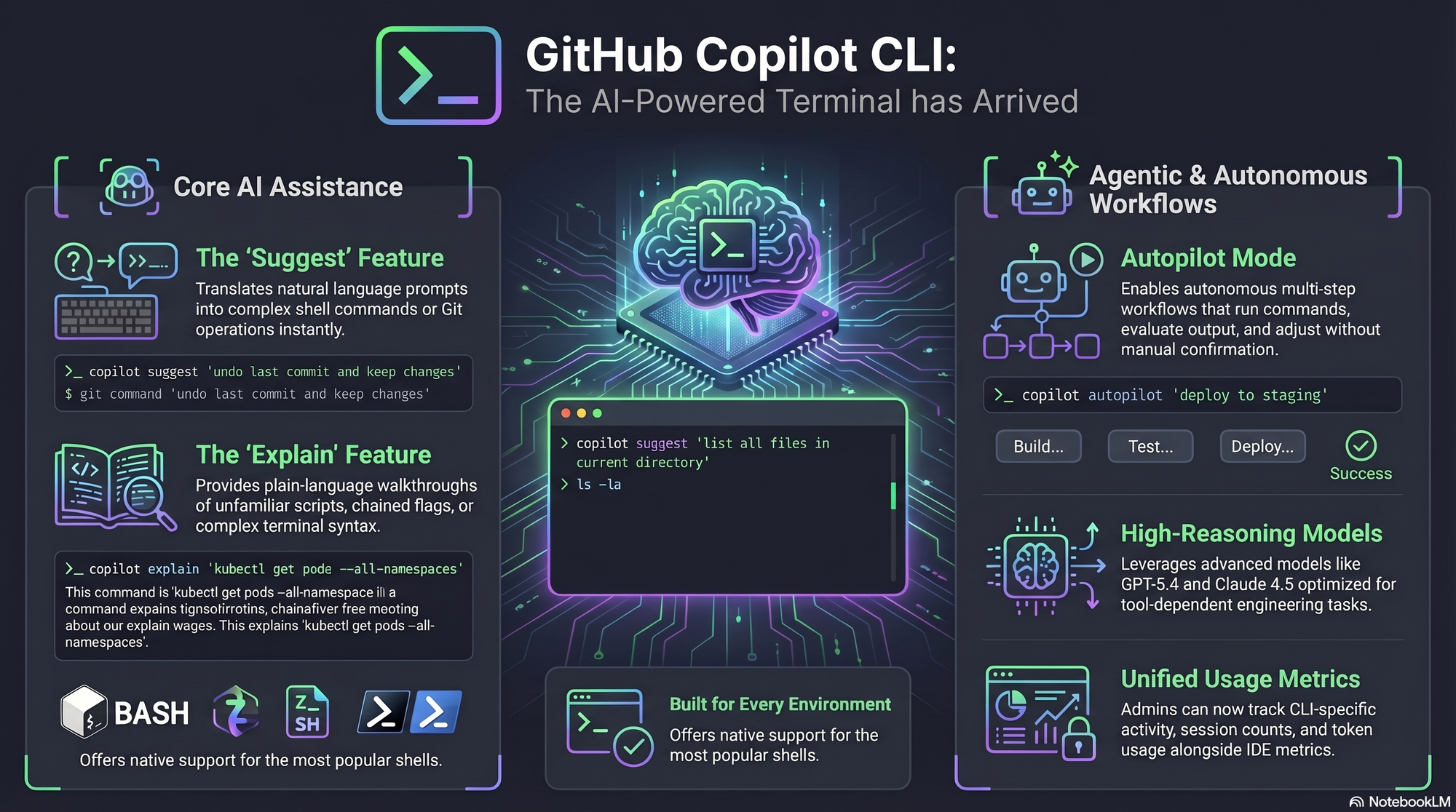
Unlike the Copilot you use in VS Code (which suggests code snippets), the CLI version focuses on shell commands. It understands what you want to achieve and translates your natural language into a functional terminal command.
Key Features of the GA Release
- Natural Language to Command: Ask "List all files larger than 100MB" and get the exact command.
- Command Explanation: It doesn't just give you a command; it explains why it works.
- Safety First: It doesn’t execute commands automatically. It shows you the suggestion first, allowing you to review, edit, or copy it.
- Context Awareness: It understands whether you are using Bash, Zsh, or PowerShell.
Step-by-Step Guide: Getting Started
If this is your first time seeing GitHub Copilot in the wild, follow these steps to set it up.
1. Prerequisites
Before you start, make sure you have:
- An active GitHub Copilot subscription (Individual, Business, or Enterprise).
- The GitHub CLI (
gh) installed on your machine.
2. Installation
The Copilot CLI is distributed as an extension for the GitHub CLI. Run the following command in your terminal:
Bash
gh extension install github/gh-copilot
3. Authentication
You need to authenticate with your GitHub account to let the extension know you have a valid subscription:
Bash
gh auth login
Follow the browser prompts to log in.
4. Your First Command
Now that you’re set up, you can start asking for help. Use the gh copilot suggest command followed by what you want to do:
Bash
gh copilot suggest "Create a git commit with a message 'initial commit' and push it to main"
The CLI will offer a suggestion. You can then choose to:
- Copy to clipboard
- Execute command (Use with caution!)
- Explain command
Why is this a Game-Changer for Developers?
1. No More "Syntax Panic"
We've all been there: trying to remember how to undo a git commit or how to filter logs by date. Copilot CLI removes the mental overhead of memorizing flags.
2. Learning Tool
By using the "Explain" feature, you aren't just copy-pasting; you are learning the underlying shell scripts. It’s like having a senior engineer sitting next to you, explaining the terminal's secrets.
3. Efficiency & Focus
Context switching (moving from Terminal to Browser to Terminal) is a productivity killer. Keeping your hands on the keyboard and your focus in the terminal significantly speeds up your workflow.
Final Thoughts
The move to General Availability means GitHub Copilot CLI is now stable, polished, and ready for your daily production environment. Whether you are a QA Automation Engineer managing test environments or a DevOps professional orchestrating cloud resources, the terminal has just become much more accessible.
Ready to try it? Update your gh CLI today and start talking to your terminal!
Pro Tip for Power Users
To make things even faster, you can create an alias in your .zshrc or .bashrc file: alias ??='gh copilot suggest'
Now, you can simply type: ?? "How do I check open ports on my Linux machine?"